
A surface made of triangles
An STL represents the model as a mesh of triangles. The STL viewer shows its shape, dimensions in model units, and triangle count.
Use this free online STL viewer to inspect 3D models in your browser.
Choose your STL model
Free & private
Model preview
Sample model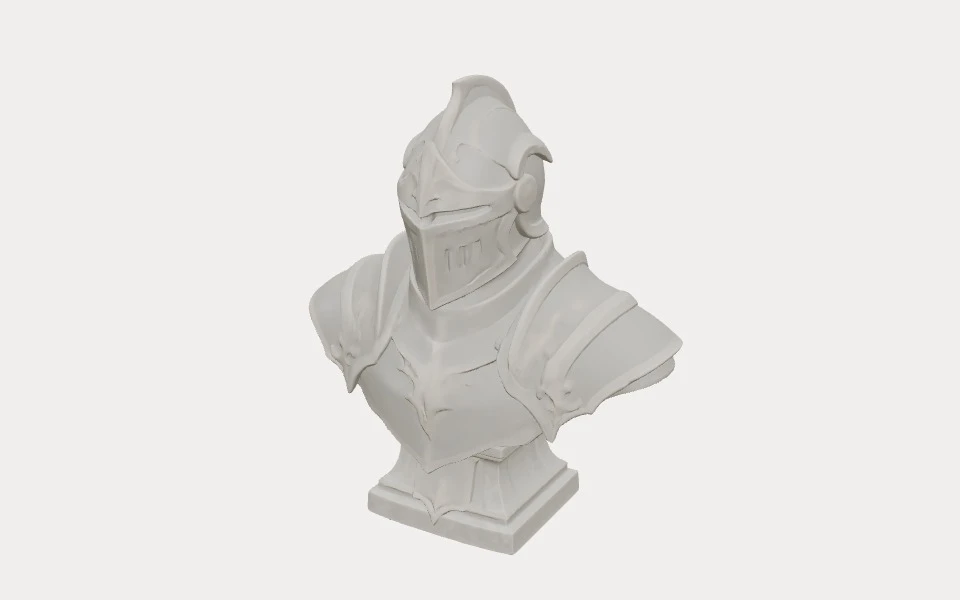
How it works
Select or drop a model up to 50 MB and 100,000 triangles.
Rotate and zoom the 3D preview to inspect the model. Use the reset button in the upper-right corner to return to the starting view.
Review the displayed dimensions and triangle count, then confirm the scale in your slicer before printing.
STL basics
STL is a 3D file format commonly used to exchange models and prepare them for 3D printing in slicing software.
An STL represents the model as a mesh of triangles. The STL viewer shows its shape, dimensions in model units, and triangle count.
The preview shows geometry only and cannot reproduce the model's original surface appearance.
Before importing a model into a slicer, look for broad flat areas that may sit on the build plate and overhanging features that may need attention. Use this first look to plan what to check next; set the final orientation and supports in your slicing software.
If someone sends you a model, the STL viewer lets you check its shape in your browser before opening a modeling application. Compare the visible features with the sender's description or reference image, and confirm that you received the intended version before continuing.
After exporting from modeling or CAD software, open the result to make sure the visible geometry is present. Look for missing parts or unexpected placement from several angles. You can inspect separate-looking pieces, but the STL viewer does not test whether they are connected. A visual check does not verify that the mesh is ready to print.
When you have more than one version of a design, open each version in turn and note changes in shape and displayed dimensions. The viewer shows one model at a time; it does not automatically compare files or identify which revision is correct.
Look at the front, back, sides, and underside to find details hidden in the initial view. For example, a handle or opening may be obscured behind another part. Viewing it from another angle can help you distinguish overlapping surfaces and check the overall shape.
Use the scroll wheel or pinch gesture to zoom in on openings, edges, and small features, then zoom out to see them in context. The STL viewer supports visual inspection, but it does not measure wall thickness or automatically detect gaps or other surface defects.
The STL viewer displays approximate dimensions for the model's overall extent along each axis. Exporting the model in a different orientation can change those axis-aligned values; rotating the preview does not. Compare the dimensions with the intended size and confirm the scale in your slicer before printing.
The triangle count tells you how many faces are used to describe the surface. More triangles can capture finer detail but may also make a file heavier to process. The count alone does not tell you whether the surface is closed, accurate, or suitable for printing.
Common questions
Yes. Your model is processed locally in your browser and is not uploaded to a server.
Check that your file is a valid STL no larger than 50 MB and contains at most 100,000 triangles. If it exceeds either limit, simplify the mesh or export a smaller file from your modeling software, then try again.
STL does not specify units. The viewer shows the numeric dimensions in model units; confirm the intended scale in your slicer.
No. The viewer displays the model geometry but does not repair it or guarantee printability. Inspect the model in your slicer before printing.
Yes. The STL viewer can read both binary and ASCII STL files, subject to the same size and triangle limits. If a file does not open, check that the export is valid and try exporting it again from the original software.
The preview shows one model at a time. Choosing another file replaces the current preview; the viewer does not provide a side-by-side comparison.
No. The STL viewer creates a preview in your browser without overwriting the file on your device. Rotating or zooming changes only your view and is not saved to the model.
More tools