
How to Resize an AI-Generated STL Before Downloading
Set the longest edge of an AI-generated STL to 10–300 mm, preserve its proportions, and check the downloaded size in your slicer.
Last updated: 2026-11-26
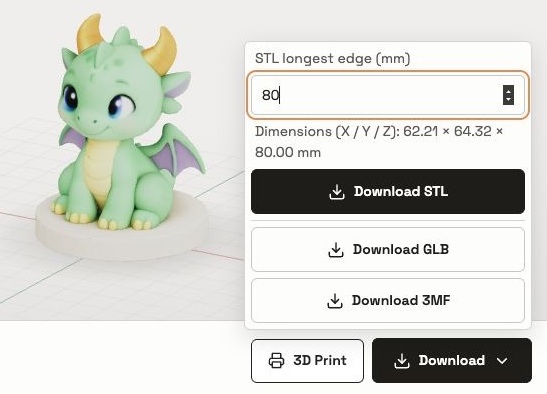
In Text to STL, open Download on a finished model and set the STL longest edge to 10–300 mm. The longest edge is the largest of the width, depth, and height. All three dimensions scale in proportion, and the size input is in millimeters. STL stores coordinates without a unit field, so import it as millimeters in your slicer.
Set the size and download
- Open a finished result in My models.
- Open Download and enter the size in STL longest edge (mm). Check the updated X, Y, and Z dimensions shown beside the export.
- Choose Download STL. Open the file in your slicer and compare its dimensions to the export.
The STL size control stays with the current result when you close and reopen the menu. For GLB, the model keeps its original size. Use 3D Print for the separate 3MF preparation workflow.
Download the same model at three sizes
We opened our generated baby dragon sample in a local test of the finished-result screen and exported it three times from the Download menu. The bounds below come from the downloaded files, measured before slicing. Each file has 19,412 triangles.
| STL file | X × Y × Z (mm) | Estimated time | PLA |
|---|---|---|---|
| 40 mm | 31.11 × 32.16 × 40.00 | 37m 00s | 8.40 g |
| 80 mm | 62.21 × 64.32 × 80.00 | 1h 55m 19s | 43.63 g |
| 120 mm | 93.32 × 96.48 × 120.00 | 4h 25m 18s | 118.74 g |
All three sliced in Bambu Studio 02.08.02.61 using a Bambu Lab A1, a 0.4 mm nozzle, Generic PLA, 0.20 mm layers, 15% infill, three walls and automatic normal supports. Time and material are slicer estimates for this model and profile. These files were tested through slicing.
Check the size before slicing
If you set the longest edge to 80 mm, a wide model may still be shorter than 80 mm. Check the dimensions before applying another scale in the slicer. When you scale down, inspect walls, small details, and the layer preview. For a part that needs an exact hole or fit, set that dimension in CAD.
Frequently asked questions
Does the public sample STL change when I use 3D Print?
The homepage's public sample STL is a fixed file. The size control in its 3D Print panel applies to 3MF preparation. Follow the STL resizing steps with a finished result in your account.
Can I set just the height or wall thickness?
The longest edge controls the entire model proportionally. If height is the longest edge, the selected value is its height. Use a slicer or CAD tool when you need a specific dimension or wall thickness.
What should I check before printing?
Check units, dimensions, walls, orientation and supports. A successful slice confirms that the selected profile produced toolpaths. Physical print quality needs a print test.
Related tools
- Inspect an STL to preview its shape.
- Check and repair an STL if your slicer flags mesh issues.
- Convert a 3MF file to STL when you need geometry only.