
Share with an STL-only service
Some print services, model repositories or older tools accept STL but not 3MF. Check their file and size requirements before submitting.
Convert 3MF geometry to STL locally and check its size before printing.
Choose your 3MF model
Model preview
Sample model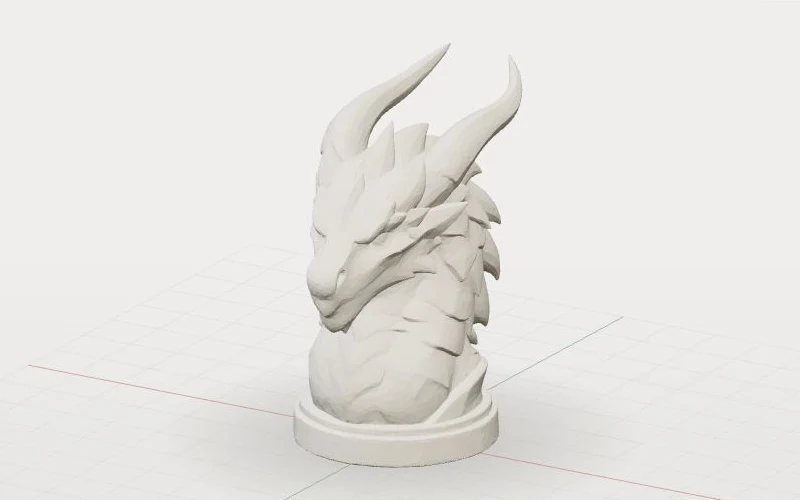
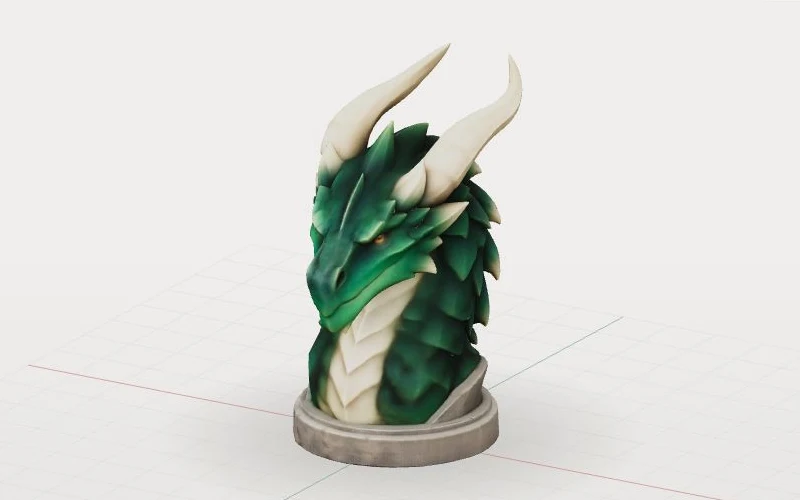
Slicer-specific modifiers, support objects and plate settings are not applied. Inspect the converted model in your slicer.
How it works
Select a 3MF model or project from your device.
The tool extracts build items and converts coordinates to millimetres.
Inspect the result and review it in your slicer before printing.
When to convert
Convert a copy when the next tool or person needs STL geometry. Keep the original 3MF if you need its project information later.
Some print services, model repositories or older tools accept STL but not 3MF. Check their file and size requirements before submitting.
An STL can be opened in a compatible mesh viewer or editor. It contains the extracted geometry, not the original slicer project.
Use STL when you only need geometry in another slicer. Set the printer, materials and slicing options again; conversion does not transfer the original print profile.
Before you print
The converter combines supported build-item meshes into one STL, preserving their supported component positions. Check the output for missing parts and unexpected placement.
Download the STL, then inspect it in the STL Viewer
STL does not retain 3MF colors, materials, slicer settings or separate objects. Slicer-specific modifiers and supports are not applied; keep the original project.
The output coordinates are in millimetres, but STL does not store units. Confirm the size and placement in your slicer, then review the layers and supports before printing.
Slicer projects
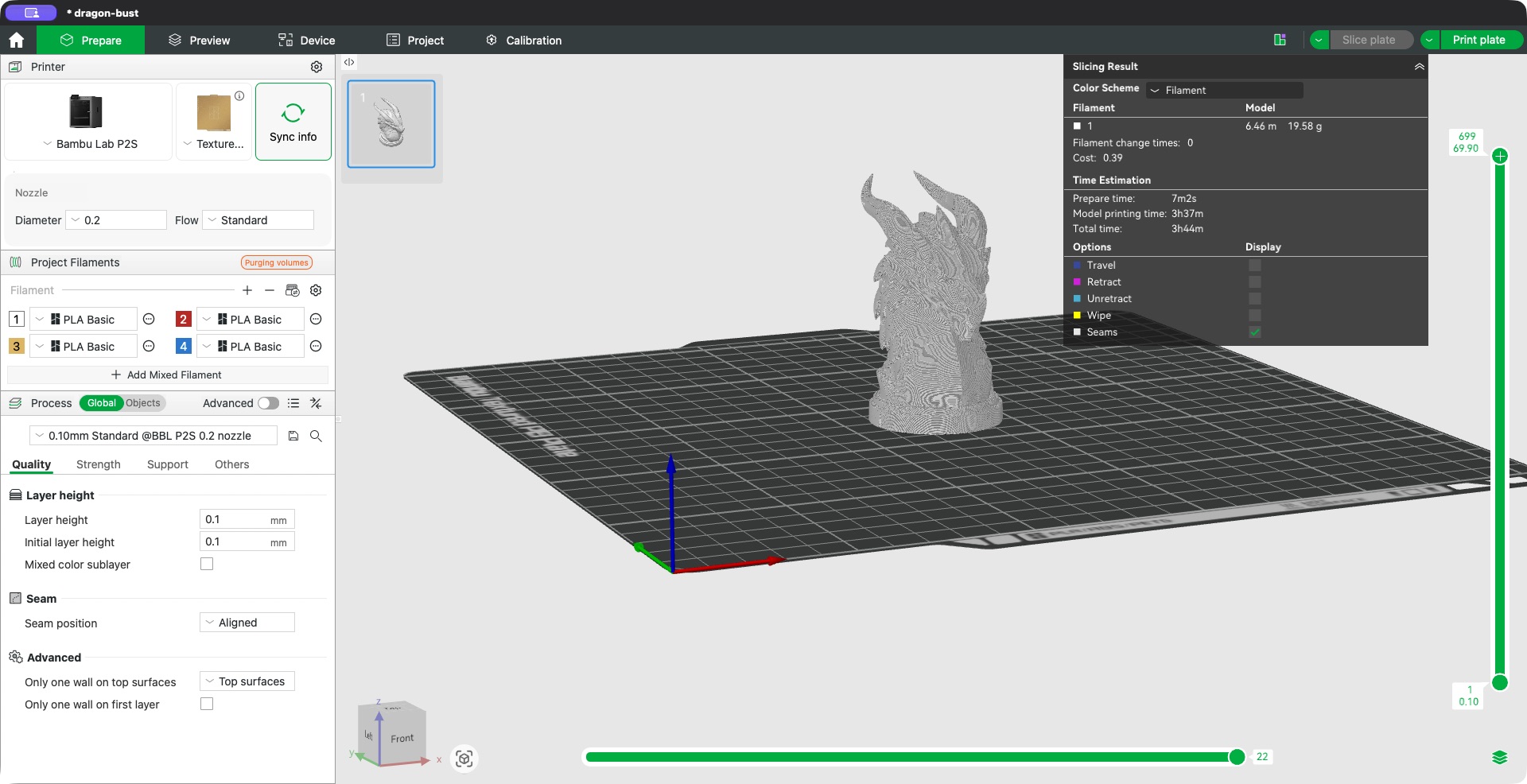
A slicer project can contain more than a printable mesh. This converter reads supported 3MF build geometry; it does not recreate the slicer's project behavior.
Supported printable build items are combined in one STL using their stored transforms. Detected multi-plate projects cannot be converted here; export the needed plate or parts from your slicer.
Detected project parts such as negative volumes and modifiers cannot be converted here. Export the model from your slicer, then check the result. Other slicer-specific settings may not be detected or applied.
The exported STL contains triangles, not painted colors, material assignments or printer settings. Keep the 3MF when you need to reopen or share the full project.
Troubleshooting
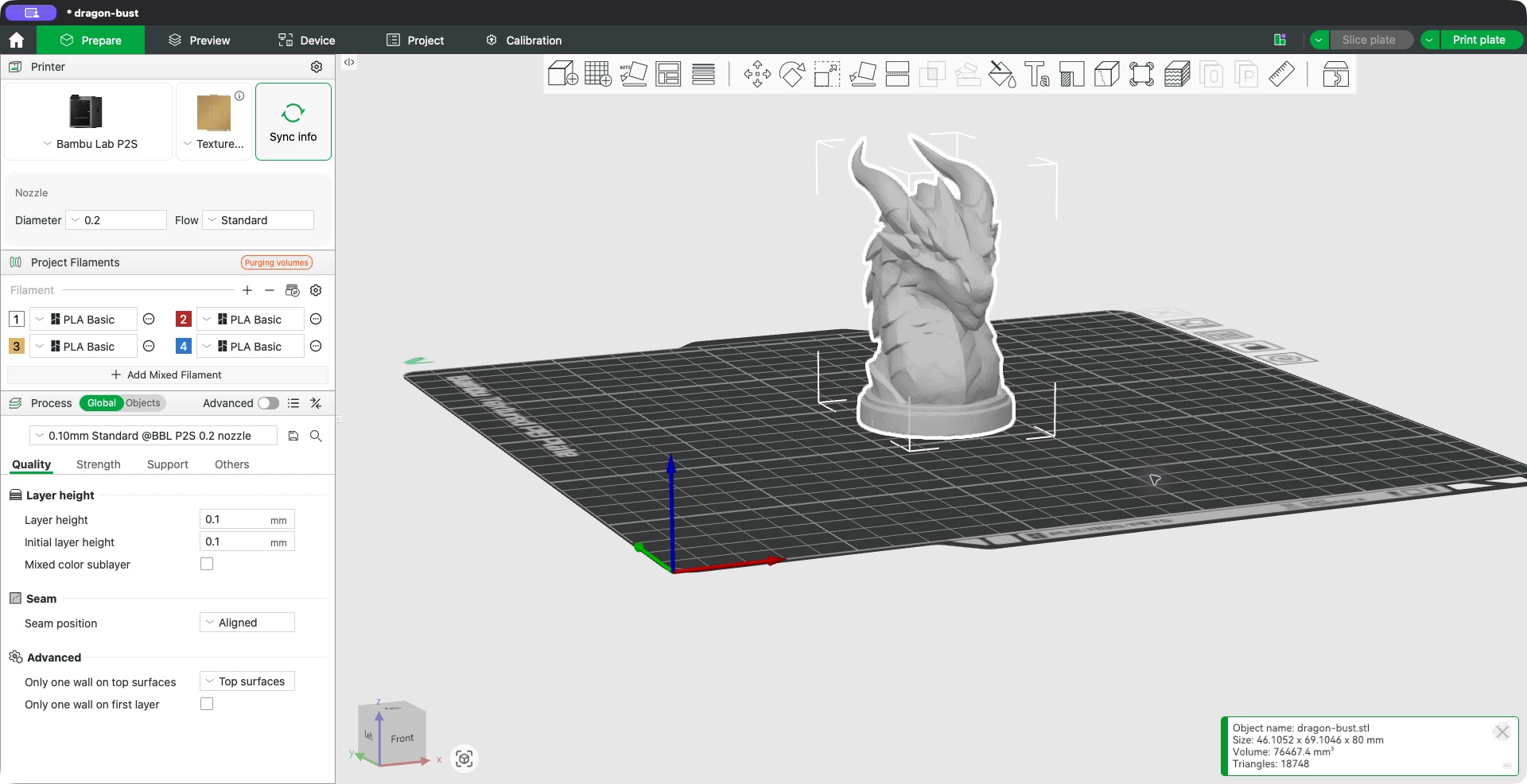
Check the displayed output dimensions and how your target application interprets STL coordinates. This tool writes coordinates in millimetres, but STL itself does not specify units.
Compare against the source 3MF in its original slicer. Project-specific modifications, multiple plates or unsupported extensions may affect the result. If necessary, export the desired geometry from that slicer and check it again.
Converting formats does not repair mesh defects or guarantee a printable model. Keep the original and inspect the output in your slicer; for common mesh issues, you can also try STL Repair
Common questions
Mesh geometry, build items, component positions and supported units are converted to a single STL. Colors, materials, settings and separate objects are not preserved.
No. Files are processed locally in your browser.
3MF specifies units but STL does not. This tool writes millimetre coordinates; confirm your slicer interprets the file in millimetres.
Core mesh objects and production component references are supported. Slicer modifiers, support objects and plate settings are not applied; export from your slicer when those affect the shape.
Standard STL stores triangles rather than 3MF colors, materials or slicer settings. Keep the original 3MF.
No. This tool is free to use without an account.
More tools